So your image generator stalled halfway through a project because the cloud credits ran dry again? The ASUS ProArt P16 is ASUS’s answer to that moment: a 16-inch creator laptop that runs AI (artificial intelligence) models on the machine itself. The 64GB model I reviewed goes on sale in Singapore from Friday, 30 October 2026 at S$7,499, according to ASUS.
That’s serious money for a laptop, so I wanted to see whether the local-AI promise holds up once you install real models and push them. ASUS loaned me the 64GB model for a week, from 21 to 28 October 2026, and I tested it side by side with my daily driver, a MacBook Pro running Apple’s M2 Max chip.
Inside is NVIDIA’s RTX Spark N1X, which pairs a 20-core CPU (central processing unit) with a 6,144-core Blackwell GPU (graphics processing unit), and the whole thing runs Windows 11 on Arm. Those three facts shape everything below, from how fast the AI test ran to which tools needed Arm builds.
Thin, Light and Sleeved
ASUS lists the ProArt P16 at 12.9mm thick and 1.77kg, with a 99.9Wh (watt-hour) battery tucked inside. On paper, that’s a slim 16-inch frame for a machine pitched at running AI models locally.
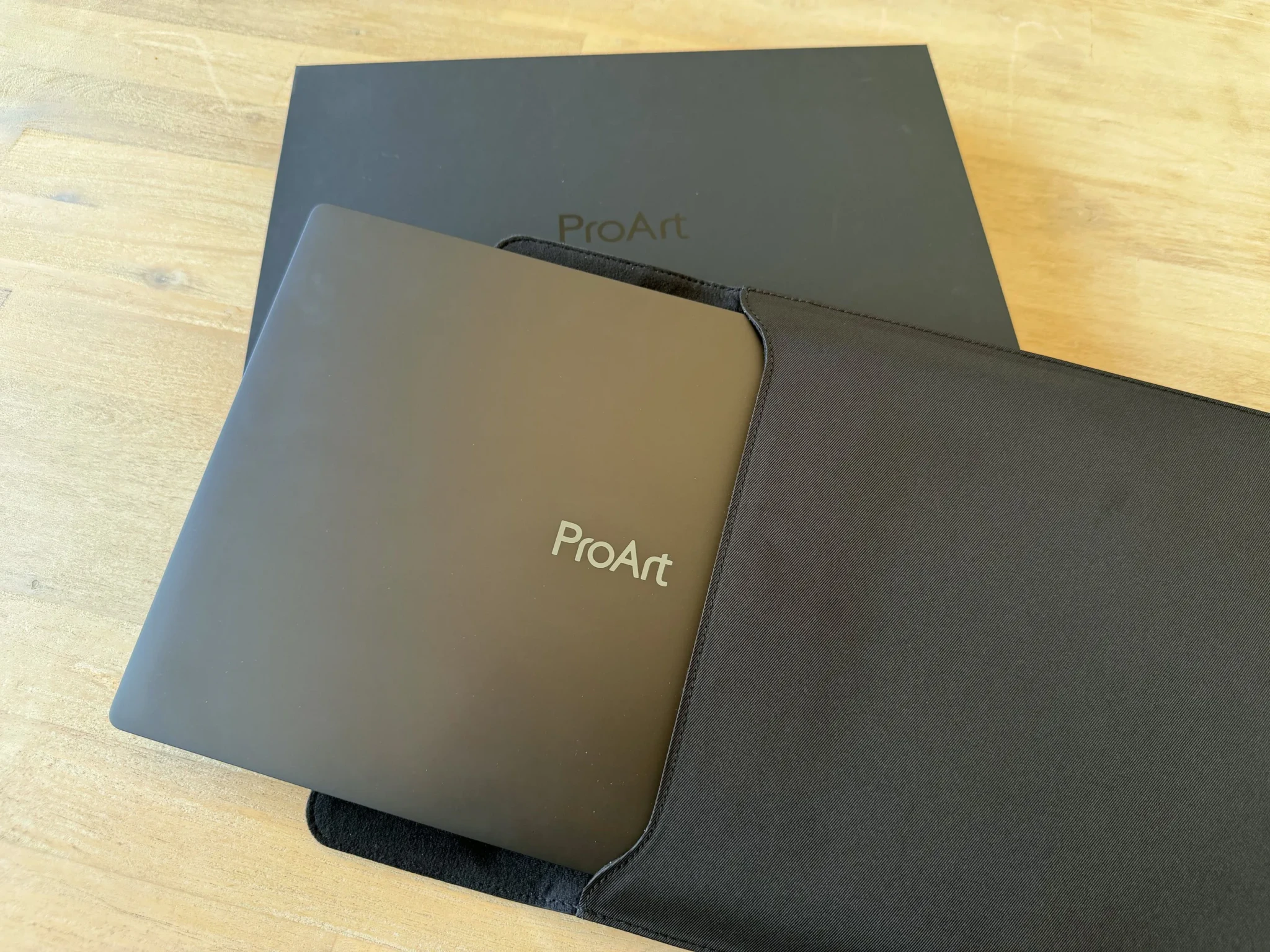
The part I didn’t expect to love is the protective sleeve that comes in the box. I carried the laptop around in it all week, and I like its design, the materials and the way it feels in the hand. Having it included means one less accessory to buy on top of a S$7,499 laptop, and that’s a gesture I appreciate!

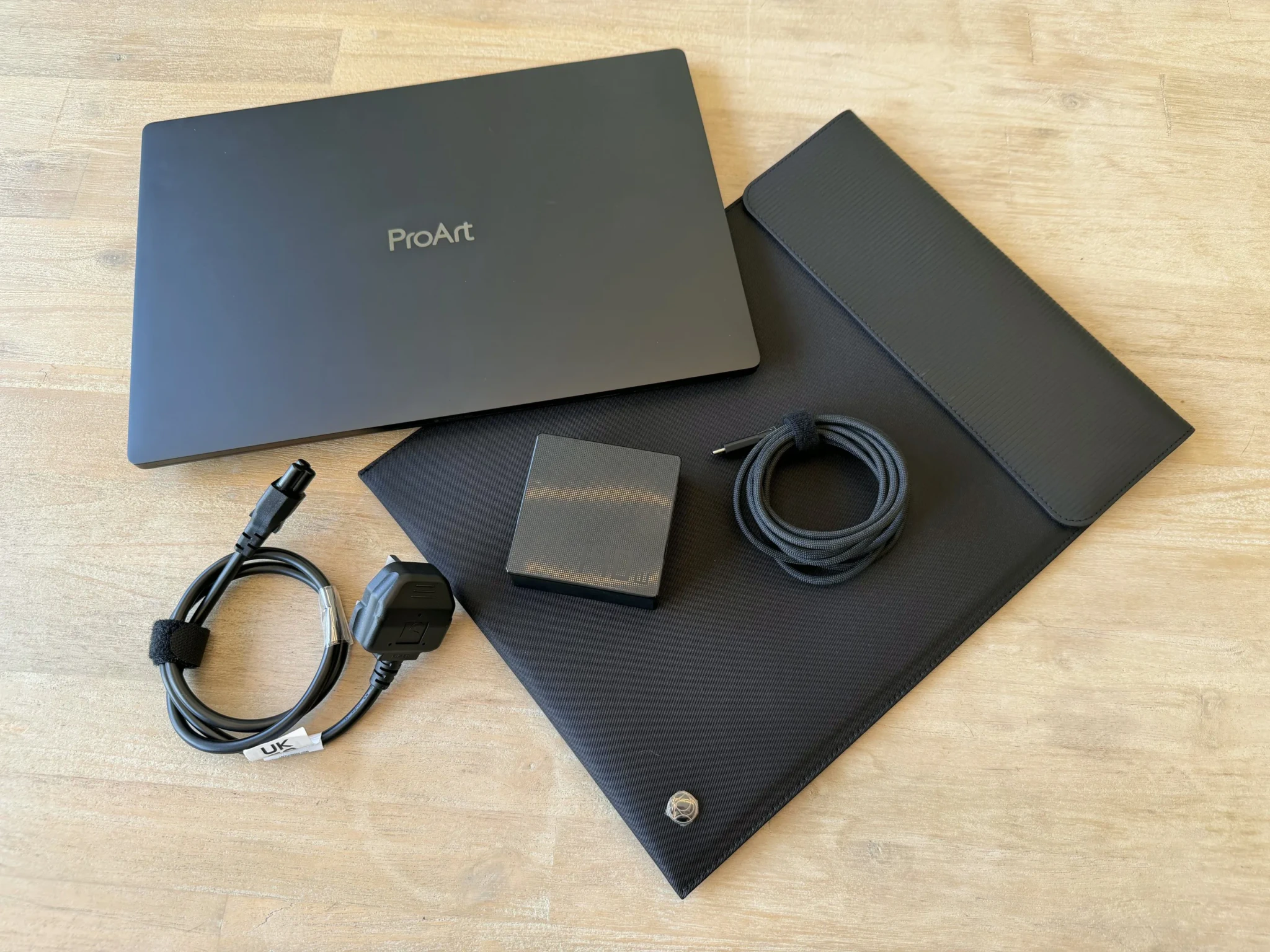
Apart from the laptop and the sleeve, the box holds a compact charger, a USB-C cable and a power cord. That’s the whole kit, and it’s tidy enough to throw into a work bag without fuss.
A 4K OLED That Holds Its Own
The screen is a 16-inch 4K OLED (organic light-emitting diode) touchscreen at 3,840 x 2,400 pixels, running at 120Hz. For this 64GB model, ASUS’s spec sheet lists 500 nits in SDR (standard dynamic range), up to 1,100 nits peak in HDR (high dynamic range), and no anti-reflective coating. The 1,600-nit peak and anti-reflective coating you may have seen in ASUS’s launch materials belong to the 48GB model, so check which panel you’re paying for.
As for how it looks, I put it next to my MacBook Pro M2 Max, and the colours were close enough that I wouldn’t notice a difference beyond the extra resolution. For a Windows laptop to stand up to a Mac screen that well is a strong start. I used the touchscreen during testing too, which is handy for scrolling and tapping through menus when the trackpad feels too far away. That said, I’m still someone who’d much rather use the trackpad as much as possible, because I’m not keen on cleaning fingerprints off the screen every so often.
The speakers hold up their end of things. Videos and music sounded pretty decent through them, which is plenty for a YouTube break between tasks, though I’d still plug in headphones for anything where audio detail counts.
A Keyboard With a Soft Touch
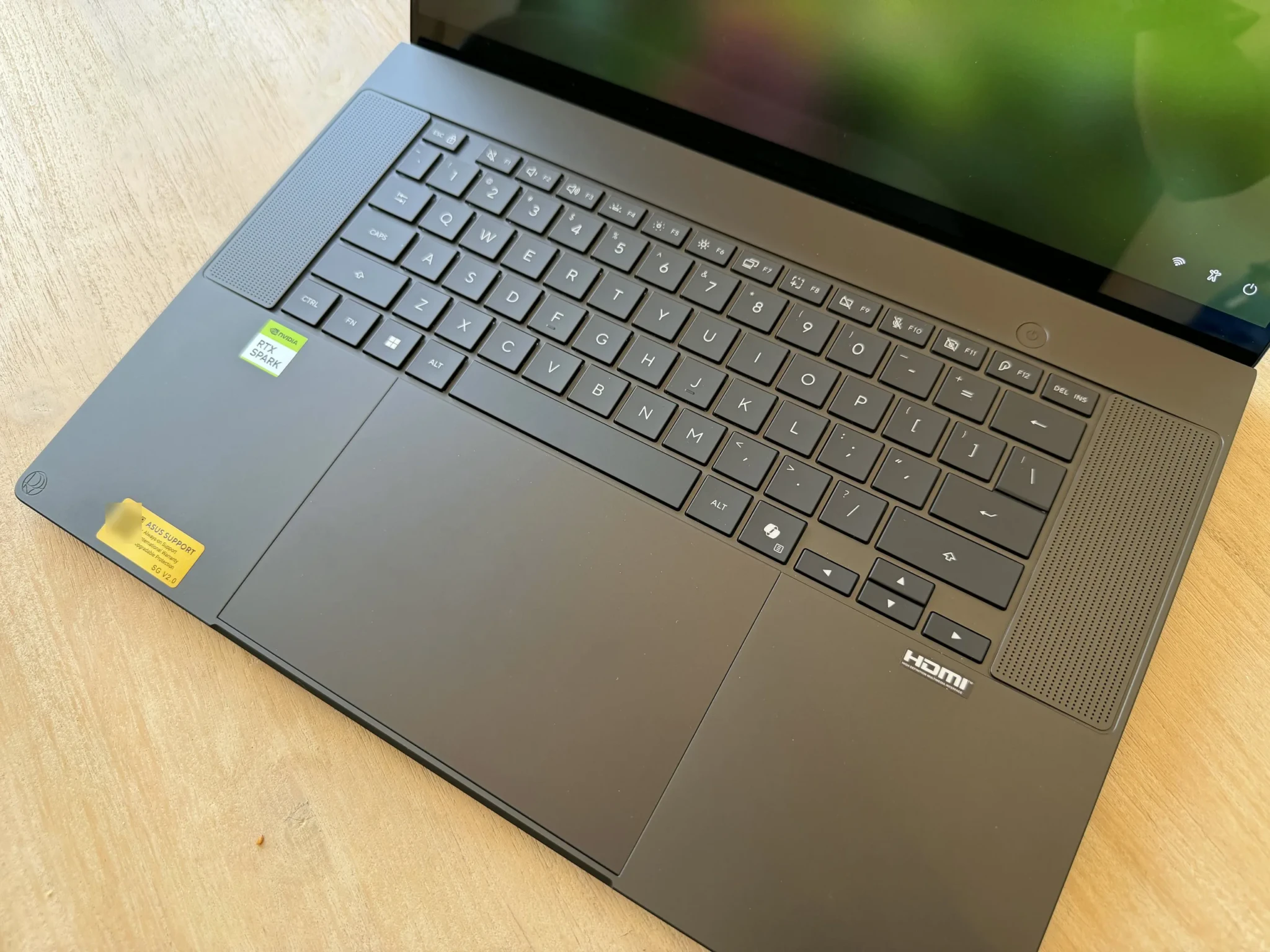
The keyboard has good travel, and once again I liked how tactile it felt. The keys aren’t finished in plain plastic, so they have a soft, almost velvety feel under your fingertips.
Webcam, Mics and a Quick Fix
Face login worked fine from day one, and the built-in microphones did their job without complaint. On Google Meet, the camera and mic were alright, which is about what I want from a laptop webcam: clear enough for a work call and nothing to apologise for.
The touchpad asked for a firmware update right after unboxing. It was a small detour, but worth knowing about if you plan to open the box and get straight to work.
The Local AI Test
This is the part you’re paying for. ASUS’s pitch is that the ProArt P16 runs generative models and AI agents on the laptop, with no cloud limits or per-token costs, so DANAMIC ran a quick test with real models to see how that pitch holds up.
On our tested Windows ARM64 software stack, the laptop completed local Qwen2.5-7B Q4 inference (a 7-billion-parameter language model compressed to 4-bit precision), SDXL (Stable Diffusion XL) image generation and a short Wan 2.1 video workflow using its 1.3-billion-parameter model. I ran everything on AC power, in the Recommended performance mode that ProArt Creator Hub set for me.
For an outside reference on the same 64GB, 4K configuration, PC Games Hardware measured 4.87 seconds per 512×512 image in UL Procyon’s Stable Diffusion 1.5 test on AC power.
Here’s how it went. Qwen generated text at roughly 54.6 tokens per second on the GPU, dipping to about 51.3 with a 4K-token context, against 21.1 tokens per second on the CPU alone. A token is a chunk of text, roughly a word or part of one, and the GPU ran more than twice as fast as the CPU. Prompt processing, which is how quickly the model reads what you’ve fed it, came in at about 3,000 tokens per second.
Image and video generation were just as encouraging. Warm SDXL images, at 1024×1024 with 20 steps, took about 8.1 seconds each, with the first, cold image at about 10.4 seconds, while the 17-frame Wan 2.1 clips took about 7.5 seconds once warm. Not bad for something that fits in a sleeve.
Those figures come with limits, so read them as what they are. This was a defined quick baseline for the specified models and settings, and it doesn’t measure sustained performance, battery efficiency, dedicated NPU (neural processing unit) speed or output quality.
The fans became noticeable only during the AI benchmarks. In general use, the laptop never felt warm or loud enough for me to register, and it didn’t crash once during the week.
I opened ProArt Creator Hub and tried MuseTree, one of the AI creative apps ASUS bundles, and found it pretty cool. To keep things honest about scope, I didn’t edit photos or video on the ProArt P16, and I didn’t try games either. To me, it isn’t a gaming laptop, and I didn’t treat it as one.
How We Tested AI
Every AI number in this review comes from one scripted run on AC power, so you can see exactly what was measured and what wasn’t.
The models. For text, we used Qwen2.5-7B Instruct compressed to 4-bit precision (the Q4_K_M file), running in llama.cpp’s native Arm build on NVIDIA’s CUDA. For images, we used Stable Diffusion XL base 1.0 at 1024×1024 with 20 steps. For video, we used Wan 2.1’s 1.3-billion-parameter text-to-video model, making 17-frame clips at 512×320 with 12 steps. Both creative workloads ran in ComfyUI v0.42.1 on native Arm PyTorch with CUDA.
Warm and cold. The first image or clip in a run is “cold”, because the software is still settling in. Every one after that is “warm”, which is closer to what you feel mid-project. We timed three warm images and two warm clips, each with a fresh random seed, and report the average. Each timing runs from queuing the job to the saved file, so it includes a little app overhead.
Text speed. We measured how fast the model writes, in tokens per second, from a short prompt and again with 4,096 tokens of earlier text already in context, three times each. We also ran the same model on the CPU alone to show what the graphics chip adds: about 54.6 tokens a second on the GPU, against about 21.1 on the CPU.
What we didn’t test. This was a short baseline, not a stress test. We didn’t run sustained heavy loads, AI work on battery or anything on the NPU, and we didn’t score the quality of the output.
How it counts in the score. On a laptop sold on local AI, AI performance is the headline result, so it carries our Performance sub-score of 90. Design (90), Display (85), Battery (70) and Value (75) cover the rest of living with it, and the overall 85 is our judgement across all five rather than an average.
Battery and Charging
I got about four to five hours of use out of the battery without running it flat. That’s an impression from my own sessions and not a rundown test, so don’t read it as a measured figure.

Charging took about an hour, but the laptop arrived nearly full, so that number tells you little about a charge from empty. Treat both lines as a rough feel for living with it day to day.
ASUS fits a 99.9Wh battery but doesn’t give a runtime figure. In PC Games Hardware‘s video-playback test, the same 64GB, 4K configuration ran for 5 hours and 45 minutes as its battery fell from 81% to 2%.
Windows on Arm, Minus the Drama
The ProArt P16 runs Windows 11 on Arm, which uses a different chip design from the Intel and AMD processors most Windows software is written for. Everything I needed worked, and that’s the headline for anyone nervous about the switch.
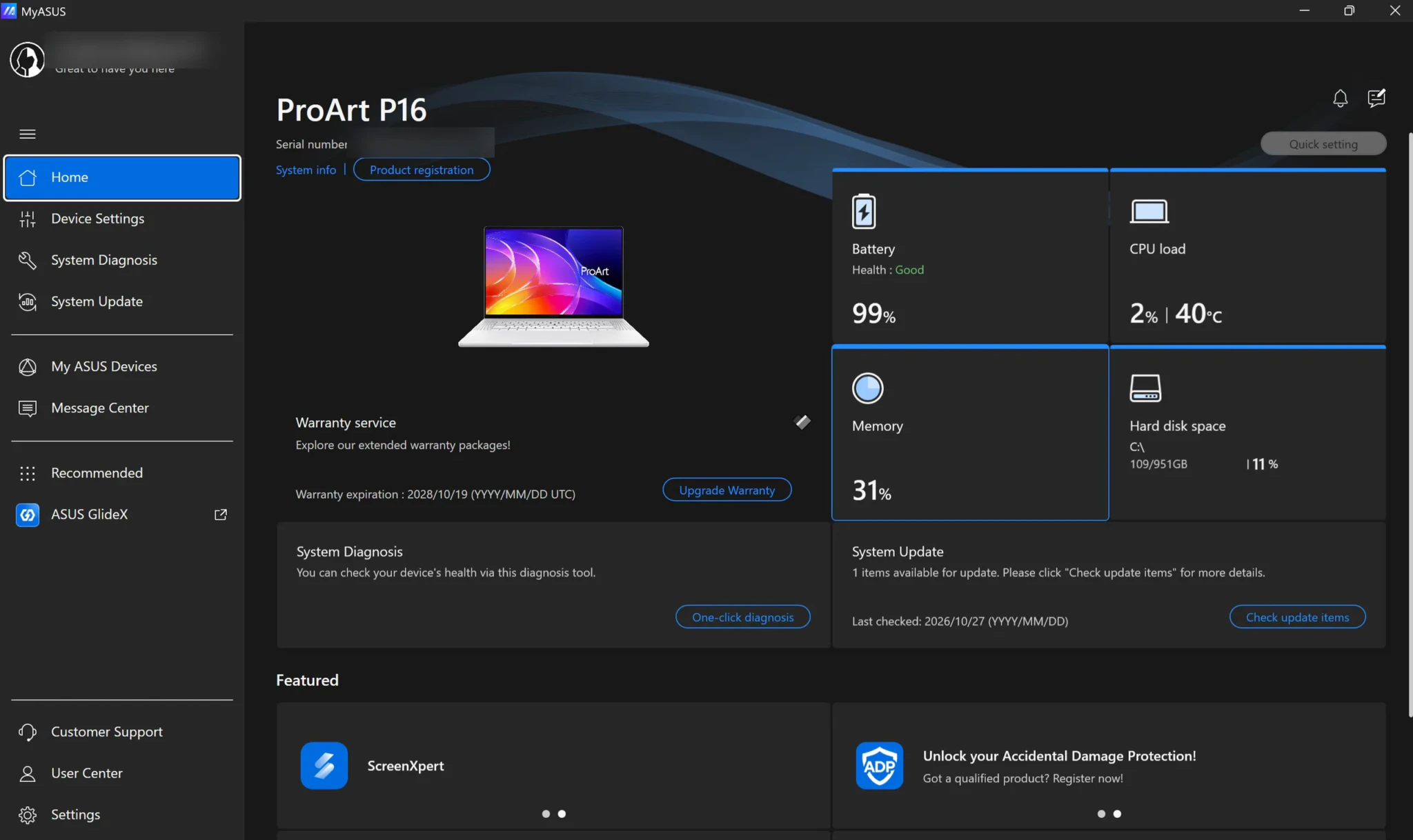
The catch is that some AI tools needed ARM64 builds, meaning versions of the software compiled for this type of chip. The model files themselves were standard downloads, so it was the tools that needed the right version, not the models. If your workflow leans on a specific plug-in or utility, check that it has an Arm version before you spend S$7,499.
My one real annoyance was the round of updates before first use. MuseTree’s update took a while to download before I could open it, while MyASUS and the touchpad firmware wanted updates too, both quick. It’s a one-time wait, but a slightly anticlimactic one when you’re itching to try a new machine.
The Ports I Leaned On
The left side of the ProArt P16 holds an SD card reader, a USB-A port and a USB-C port. On the right you’ll find HDMI (High-Definition Multimedia Interface), two more USB-C ports and a 3.5mm audio jack.
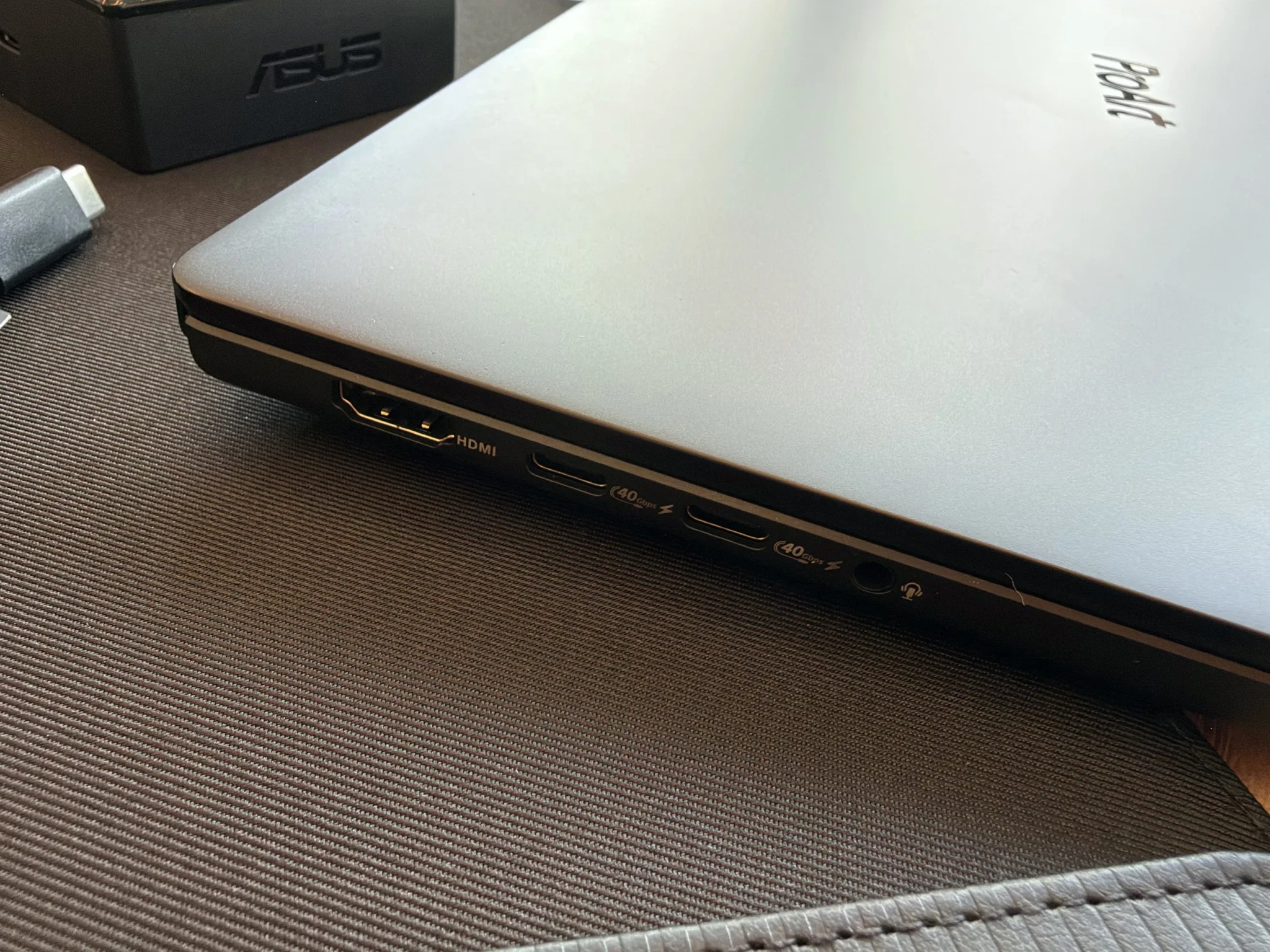
During the week, I ran a 2K 144Hz external monitor over HDMI and plugged in a YubiKey, a small hardware security key for logging in, along with a USB-C thumb drive. All of it worked without me reaching for an adapter, which is how a creator laptop should behave.

So, Is It Worth S$7,499?
Coming from my MacBook Pro M2 Max, the biggest adjustment was going from macOS to Windows. Apart from that, the ProArt P16 is a pretty decent machine that I’d happily work on.
I do wish it were cheaper. At S$7,499 it’s up against gaming laptops and MacBook Pros, and the build, the screen’s colour and quality, and the Arm chip and GPU are what make that price defensible. It would be easier to defend still if ASUS put the Pen 3.0 in the box, along with the mouse that buyers in some other markets get. The reviewers at Windows Central, Tom’s Guide, PC Gamer, Ultrabookreview and Notebookcheck land broadly where I do: excellent build and screen, strong local AI, high price.
ASUS sells three versions, with the 48GB model at S$6,599, this 64GB model at S$7,499 and the 128GB model at S$11,099. For me, 64GB is the sweet spot before that steep jump to 128GB, and it felt comfortable for the local LLMs (large language models) I installed. That’s my judgement from a week of use, not a tested result, but the gap between S$7,499 and S$11,099 is hard to ignore.
When we covered the ProArt P16’s Singapore launch, the promise was AI that runs on your own machine. After a week of real models on real hardware, that promise holds. The people who’ll get the most from it are creatives who understand how to integrate AI and LLM apps and models into their work, and want to push them hard.
We returned the unit to ASUS on 28 October 2026.
If you’ve been paying for AI one credit at a time and wincing at every regeneration, the ProArt P16 is the laptop that lets you stop counting, and the 64GB model is where I’d put my money. ASUS plans to put it on sale from Friday, 30 October 2026, on the ASUS Online Store and at authorised retailers islandwide, so check that your must-have apps run on Windows on Arm, then go try one in person!
Photos by Danish Lukawski of The DANAMIC Team; additional visuals courtesy of ASUS.
ASUS ProArt P16 (64GB)
S$7,499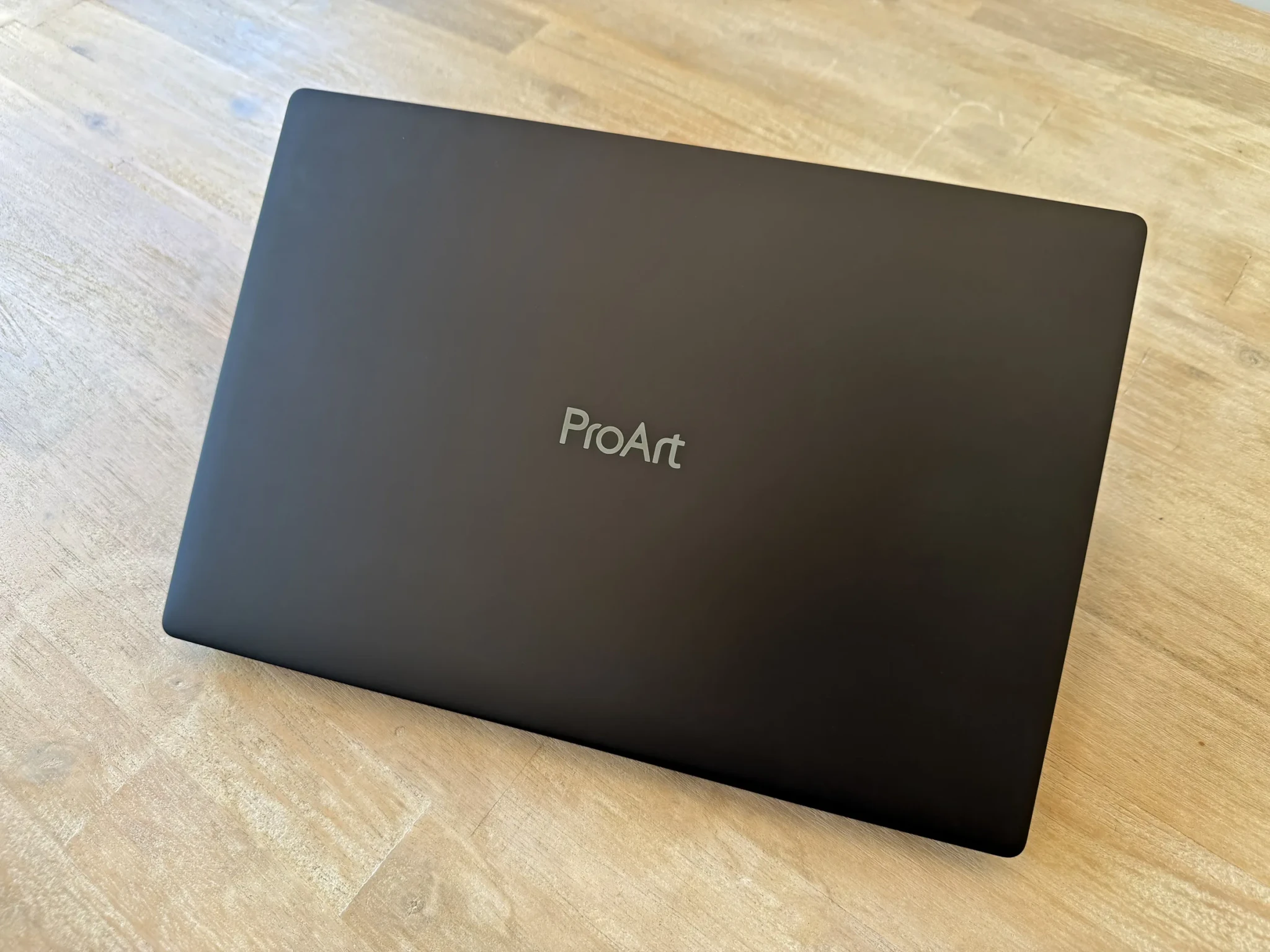
Pros
- Fast local AI on the N1X GPU: about 54 tok/s on a 7B model, SDXL images in about 8 seconds
- 64GB leaves comfortable room for the local LLMs I installed
- OLED colours close enough to my MacBook Pro M2 Max that I wouldn't notice
- Stays cool and quiet in everyday use; fans only during the AI benchmarks
- A well-made sleeve in the box
- Face login, mics and camera fine for Google Meet calls
Cons
- S$7,499 without a pen or the mouse some markets get; ASUS Pen 3.0 sold separately
- Some AI tools need Arm versions of Windows apps
- Battery about 4-5 hours in my use, untimed
- App and firmware updates before first use
Read us first on Google: add DANAMIC as a preferred source and our stories show up more in your Top Stories and AI results.